At a glance

What SpringStory does

Watering schedules

Keep a separate watering interval for every plant you own.

One-tap logging

Record a watering as you do it and the next date moves forward.

Growth timeline

Add photos over time and watch a plant fill out season by season.

No account needed

No sign-up, no analytics, no advertising. Your plants stay on your device.

Home screen

Your plant dashboard

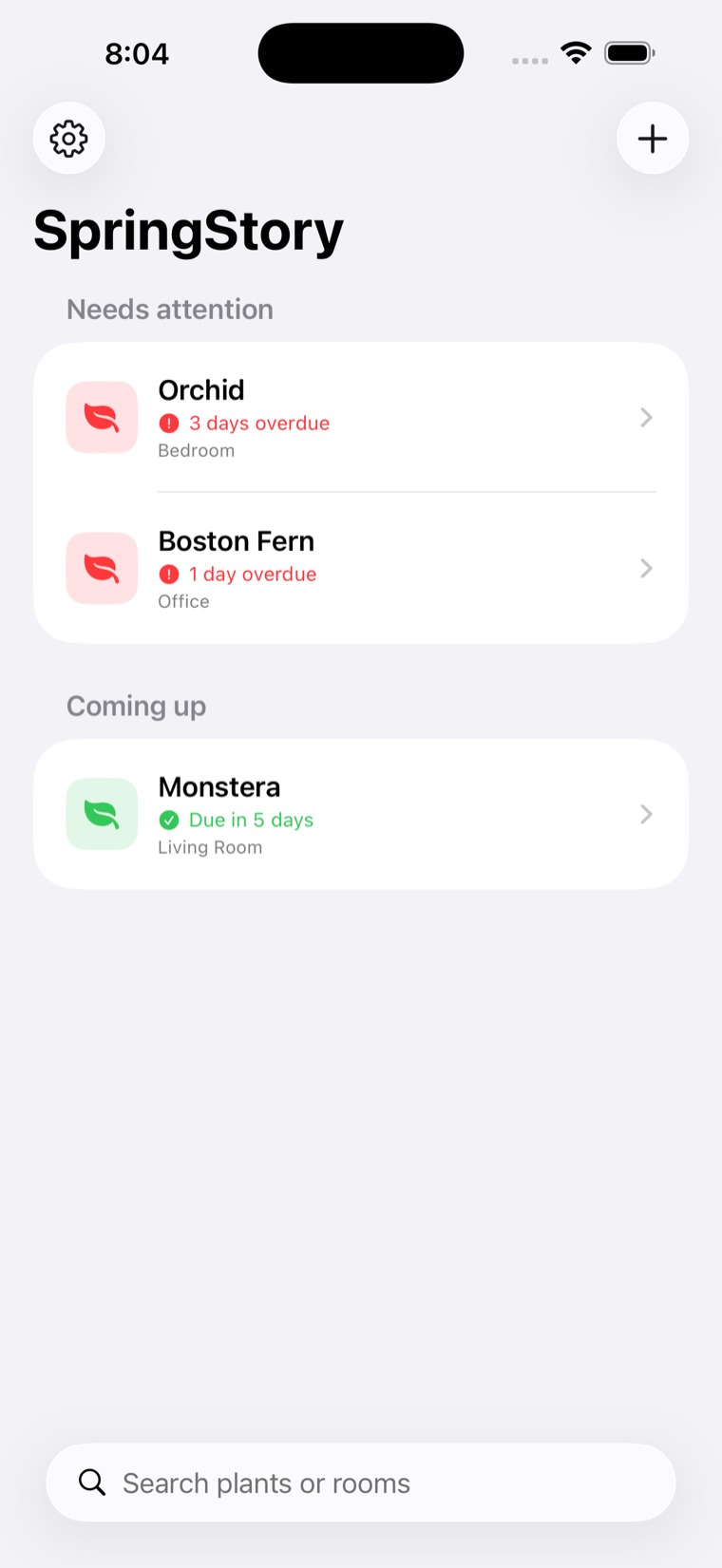
SpringStory sorts plants by urgency. Anything overdue or due today appears under Needs attention; everything else appears under Coming up.

The SpringStory dashboard listing three plants, grouped into Needs attention and Coming up.
  1. SettingsOpens reminder status, privacy information, and the installed app version.
  2. Add plantOpens a blank form for a new plant and its watering schedule.
  3. Needs attentionPlants that are due today or overdue are collected here.
  4. Plant rowTap any row for that plant's status, schedule, history, photos, and notes. Swipe left on a row to delete the plant.
  5. Coming upPlants with a watering date still in the future.
  6. SearchType a plant name or a room — "Monstera", "Living Room" — to filter the list.

Plant records

Add or edit a plant

Both screens use the same fields. A name is required; room and notes are optional.

Add plant

Tap the plus button on the dashboard to open this blank form.
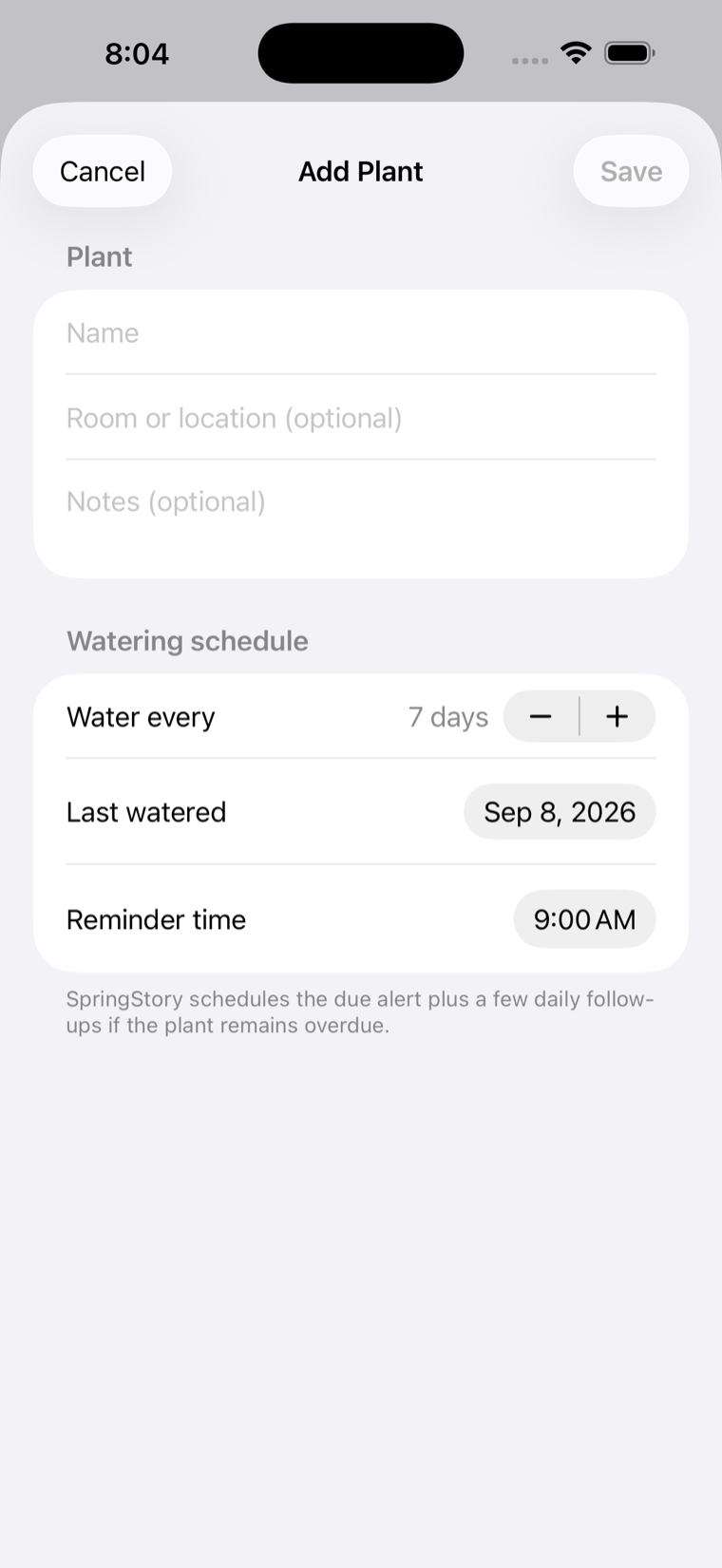
The blank Add Plant form in SpringStory.
  1. CancelCloses the form without saving.
  2. SaveCreates the plant. Becomes available once a name is entered.
  3. NameRequired. Whatever you actually call the plant.
  4. Room or locationOptional. Helps you find the plant later, and is searchable.
  5. NotesOptional care details — light, soil, rotation, anything you want to remember.
  6. Water everyUse minus or plus to set an interval between 1 and 90 days.
  7. Last wateredThe most recent watering. SpringStory counts forward from this date.
  8. Reminder timeWhat time of day watering alerts should arrive.
Edit plant

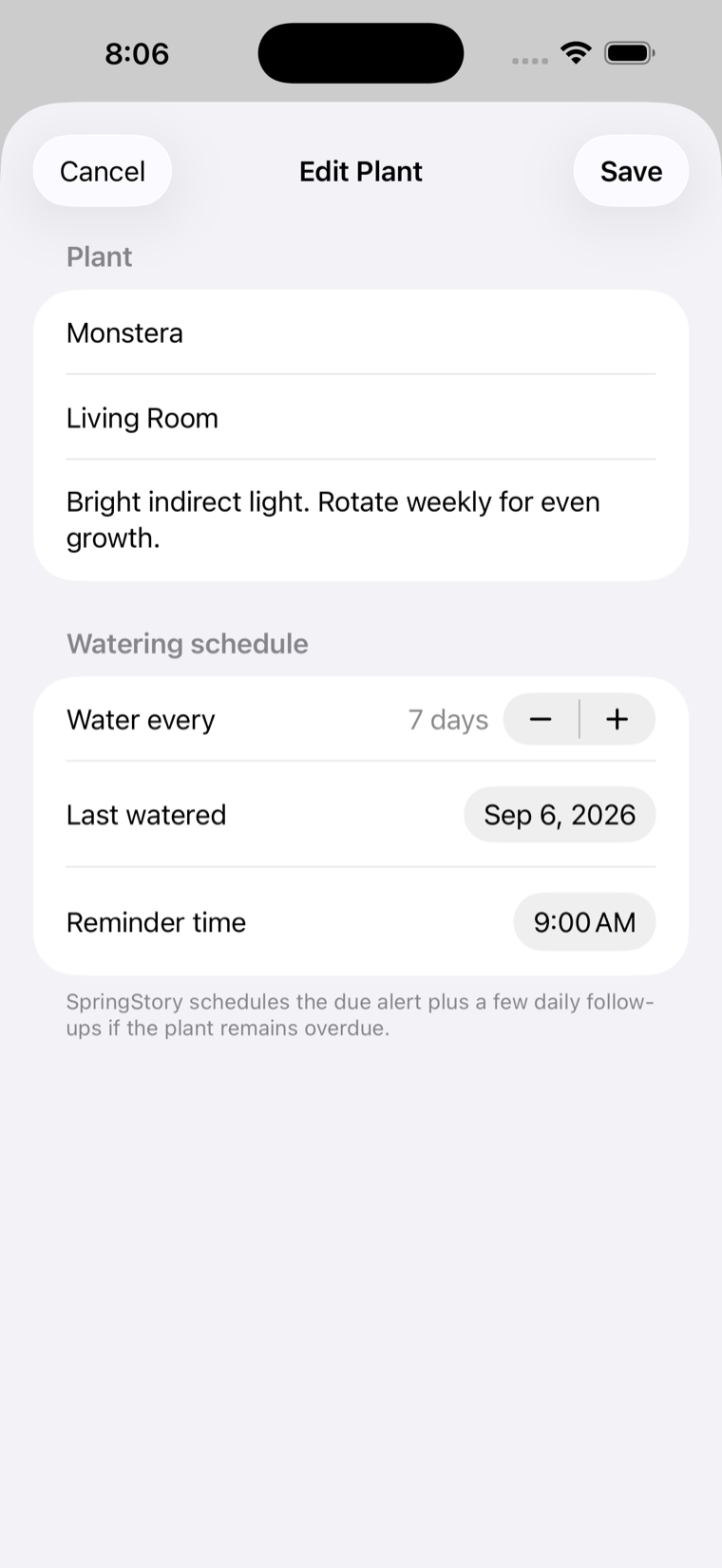
Open a plant, then tap the pencil. The existing details appear in the same fields.

The Edit Plant form filled in with a Monstera record.
  1. Plant nameChanges the name shown everywhere in the app.
  2. LocationMove the plant to another room, or rename where it lives.
  3. Care notesUpdate your own instructions at any time.
  4. SaveApplies the edits and recalculates the schedule and reminders straight away.

Tip: changing either the interval or the last-watered date updates the next due date automatically — you don't need to work it out yourself.

Plant details

Understand a plant's status

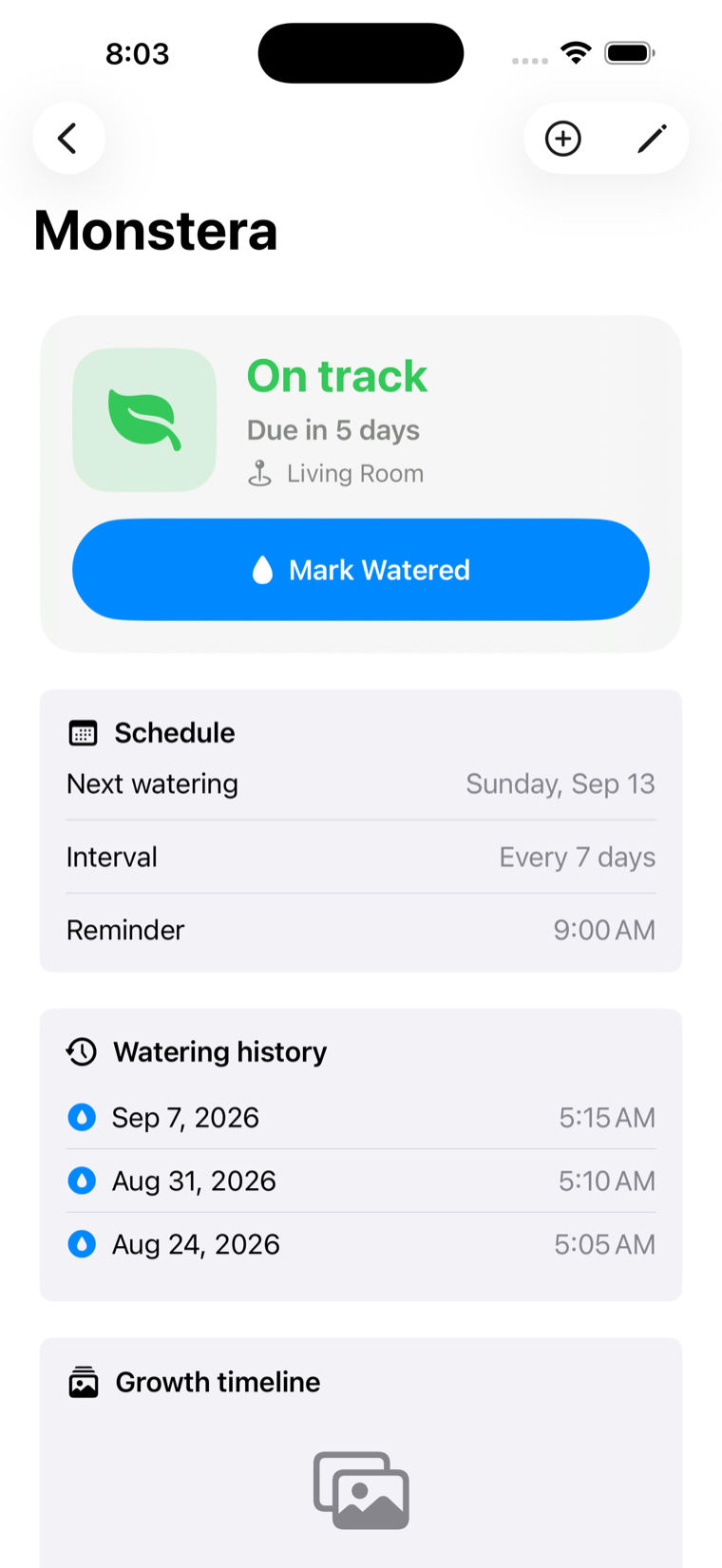
The detail screen gathers current status, the upcoming schedule, watering history, growth photos, and your notes in one place.

The Monstera detail screen showing status, watering schedule, and history.
  1. BackReturns to the dashboard.
  2. Add growth photoOpens the camera and photo-library choices.
  3. Edit plantOpens the Edit Plant form with the current details filled in.
  4. StatusWhether the plant is on track, due today, or overdue — plus its room.
  5. Mark wateredRecords a watering now and moves the next due date forward by the interval.
  6. ScheduleThe calculated next watering date, the interval, and the alert time.
  7. Watering historyThe ten most recent recorded waterings, with date and time.
  8. Growth timelineSaved photos in date order. Scroll down for the full timeline and your notes.

Growth timeline

Add photos from the camera or your library

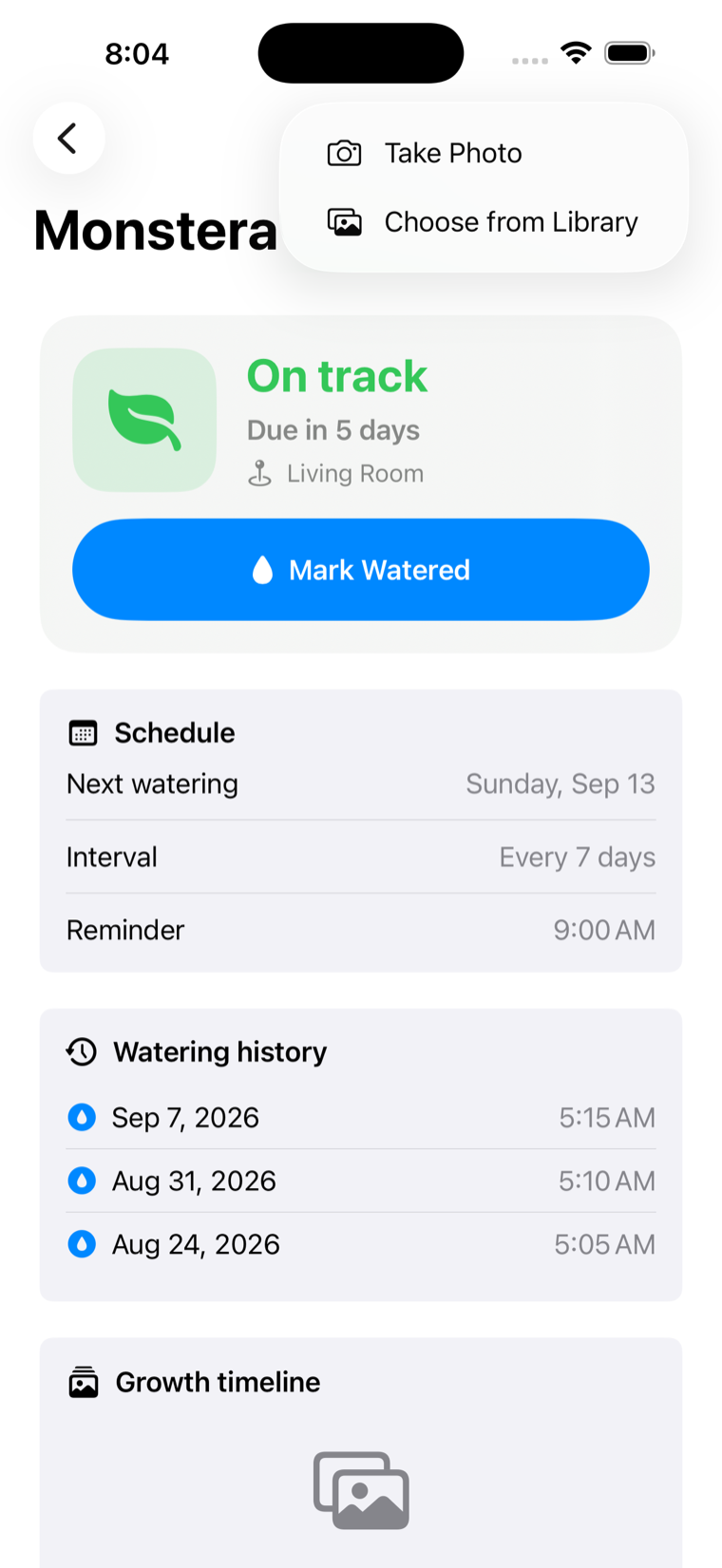
Tap the circled plus on any plant detail screen. SpringStory offers both capture and selection on iPhone and iPad.

The SpringStory growth photo menu, offering Take Photo and Choose from Library.
  1. Take photoOpens the device camera. The first use asks for camera permission. Review the picture, then accept it to add it to the timeline.
  2. Choose from libraryOpens Apple's photo picker. Pick an image and a resized copy is added to the timeline.

Removing a photo: open the plant, scroll to the growth timeline, touch and hold the photo, then choose Delete Photo. Photos are newest first.

Open a plant

Tap its row on the dashboard, then tap the circled plus near the top-right corner.

Add the picture

Take a new photo or choose an existing one. SpringStory prepares it for the timeline.

Watch it fill in

Each photo is stamped with its date, so the timeline builds a record of the plant over the seasons.

Preferences

Settings and reminders

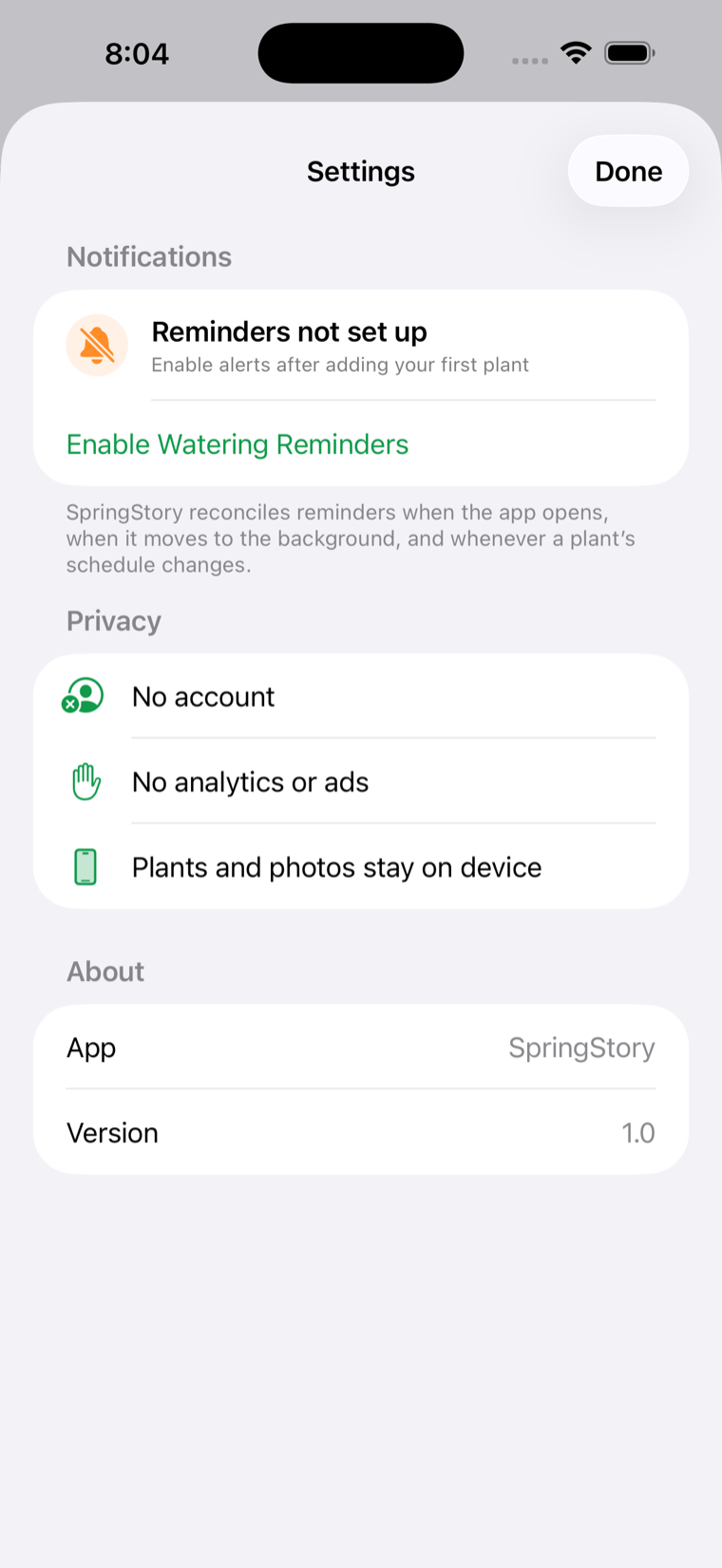
Open Settings from the gear on the dashboard. It shows the current notification permission and summarises how SpringStory handles your data.

The SpringStory Settings screen showing reminders, a privacy summary, and the app version.
  1. DoneCloses Settings and returns to the dashboard.
  2. Reminder statusWhether notifications are not yet set up, enabled, or disabled.
  3. Enable watering remindersAsks iOS for permission to send alerts, then schedules the upcoming reminders.
  4. Privacy summaryConfirms there is no account, no analytics, and no ads, and that plants and photos stay on the device.
  5. AboutThe app name and installed version — worth having to hand if you contact us.

Troubleshooting

Common questions

Why didn't I get a reminder?

Open SpringStory Settings and check the reminder status. If reminders are disabled, open the iPhone or iPad Settings app, go to Notifications, select SpringStory, and allow notifications. Reminders are scheduled on the device, so they also need the app to have been opened at least once since the schedule changed.

Why won't the camera open?

Most often the camera permission was declined the first time it was asked for. Open the device Settings app, choose SpringStory, and turn on Camera. You can always use Choose from Library instead.

How do I change the next watering date?

Open the plant and tap the pencil, then change either Last watered or Water every. Save the plant and the next date is recalculated from the values you entered.

How do I delete a plant?

On the dashboard, swipe left on the plant row and tap Delete. This also removes that plant's watering history and its growth photos from SpringStory, and it can't be undone.

How do I delete a growth photo?

Open the plant, scroll to the growth timeline, touch and hold the photo, then select Delete Photo. This removes SpringStory's copy — the original in your photo library is untouched.

Does SpringStory sync between my devices?

No. Version 1.0 keeps plants, history, and timeline photos locally on each device. There is no account and no cloud sync, so a plant added on your iPhone won't appear on your iPad.

What happens to my data if I delete the app?

Because everything is stored locally, removing the app removes its plants, watering history, and timeline photos with it. If you want to keep any growth photos, save them elsewhere first.

Your data

Private by design

SpringStory was built so that there is very little to say here — which is the point.

No account

Start using SpringStory without registering or signing in to anything.

No analytics or ads

Version 1.0 contains no advertising, tracking, or analytics services.

Stored on your device

Plant records and timeline photos stay in the app's local storage on your device.

Read the full privacy policy

Get help

Still stuck?

If this guide didn't answer your question, email us and a person will reply — usually within two business days.

Email support

Write to hello@iamyourgeek.com.

It helps enormously if you include:

  • The app version from Settings → About
  • Your device and iOS version
  • What you expected to happen, and what happened instead

Reporting a problem

Bug reports are genuinely welcome — SpringStory is a small app and real reports from real plant owners are how it gets better.

If something looks wrong on this page, or you had trouble reading or using it, tell us that too. We'll fix it.

Other ways to reach us